
With this post, we continue the series on Infrastructure as Code (IaC) with Azure Bicep, the successor to the classic ARM templates. The lasts parts of the sequence were about loops, functions and types that make the code more dynamic, readable and flexible. They help us use Bicep for automation.
Here, we take a closer look at how how we can get to our Bicep code with various non-AI (and with a bit more reliable) options. We also speak about dealing with existing Azure services within Bicep and how to integrate them into the IaC templates with references to correctly map dependencies between the services.
When working with Bicep or IaC in general, there is often a need to orient oneself to existing resources or to refer directly to them – the entire environment is not always built from scratch from one code base. With the focus on Bicep, it can be summarized that it is currently possible to use existing resources or templates:
- to import directly,
- to convert code,
- export code from Azure portal
- to reference from other code
All options are now briefly presented.
Import
The import step is an interesting way to conveniently generate Bicep code for existing Azure services in Visual Studio Code via the resource ID. This works by right-clicking on the context menu directly in the selected template and the cursor position or by pressing F1 with the insert Resource statement. By the way, the resource ID, which is important for many areas when working with Azure, can always be viewed in the portal in the overview tab of a service via the item JSON-View. In addition to the documentation of the providers, your own infrastructure can therefore also be a valuable source of information for how the code must be written.
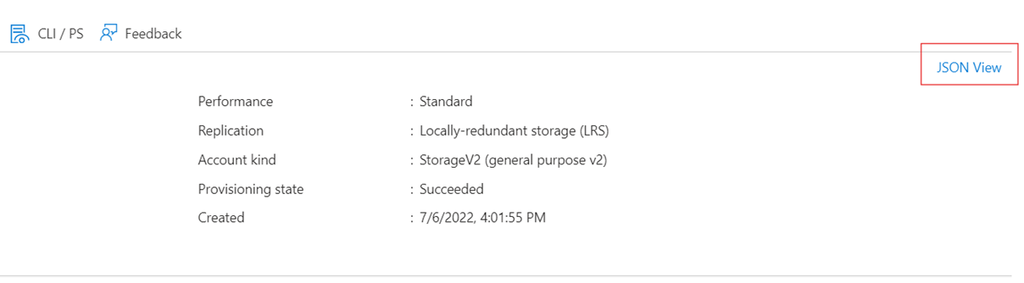
Accessing the JSON description in the portal
Conversion
Since it is currently only possible to export resources from the Azure Portal in the classic ARM format, conversion or decompilation can be useful. If an ARM template is at hand, it can also be converted via the context menu or F1 and Decompile into bicep . A possible deployment often works directly, sometimes something has to be improved, such as with a VM template. In addition, the generation of variable names is rather not suitable for permanent use, as it results in somewhat undescriptive names. However, it is a very good orientation without looking at the documentation – which does not necessarily cover your own case with examples – or the use of GitHub CoPilot or similar things.
The process also works in the other direction, from Bicep to ARM[1].
If you prefer to work with the command line, you can also use the Azure CLI, for example:
az bicep decompile -f theARMfile.json
Export from Azure Portal
Direct generation of BICEP files is now possible within the Azure portal, a feature previously only supported for ARM templates. This option can be found in the Automation section of the navigation menu for resource groups or individual resources.
A practical approach is to create the required resources using the wizard in the Azure portal and then export the BICEP template. However, this method is only a guide and not a complete, ready-made codebase, as export may not always be possible or unnecessary boilerplate code for default settings may be generated – but it´s fast and easy to start.
In the portal, it looks like this:
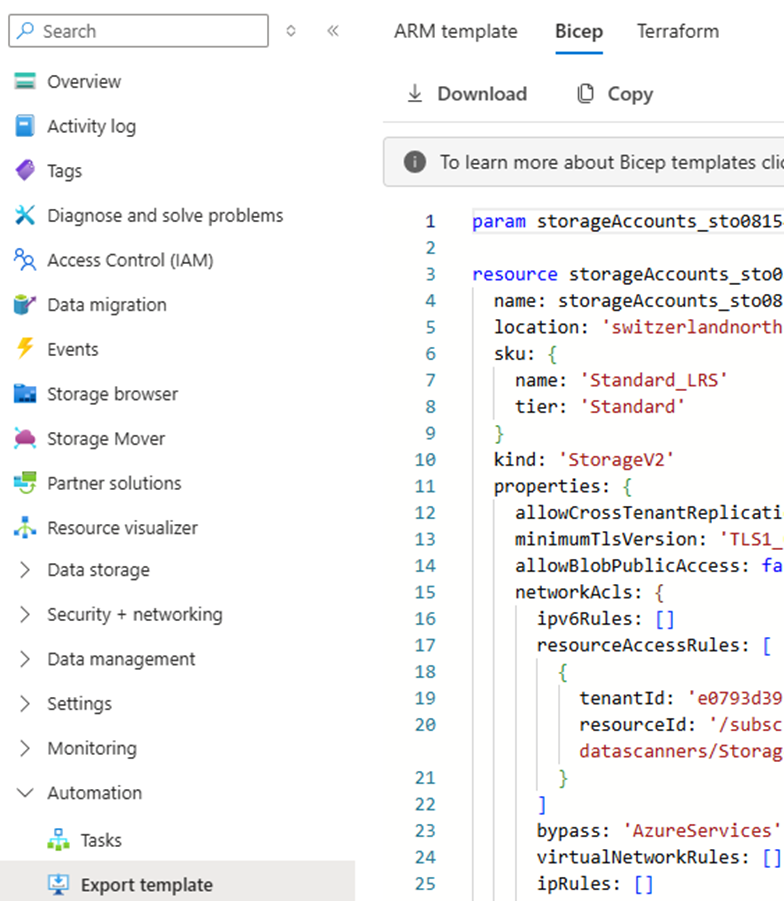
Export code template in the portal
Referencing existing resources in the Bicep Code
If you’ve worked with Terraform before, you should be familiar with data resources. These are listed in the configuration, but do not deploy anything, but only retrieve object data via an existing service. This makes them available for use in code and necessary dependencies can be implemented. Bicep has a comparable construct with the keyword existing. The structure of the resource in the skeleton is very similar to that of a normal one. In addition to the symbolic name, the provider, the API version and the existing before the = are also required. Within the resource block, at least only the name of the existing service is needed, but no other attributes. If necessary, the scope definition can be used to specify another resource group or subscription outside the current context of the template. Afterwards, the properties of the resource, supported by IntelliSense, can be accessed in the template via the symbolic name – just as if it had been completely redefined with all the information in the code. This also allows the configuration of Child and Extension resources, but more on that in the next section.
resource storage 'Microsoft.Storage/storageAccounts@2021-06-01' existing = {

  Name: 'STO08154711QUERTZ'

  scope: resourceGroup('rg-other')

}
Accesses to the properties of the existing resource would be, for example:
output stoRessourceId string = storage.id

output stoKey1 string = storage.listKeys().keys[0].Value

output usedLocation string = storage.Location
In the next post, we will look into the differences between Child and extension resources.
[1] https://learn.microsoft.com/en-us/azure/azure-resource-manager/bicep/visual-studio-code?tabs=CLI